
Scanning
Classroom Exam Scanning
Announcement:
UOEEE will discontinue its Classroom Examination Scanning Services after the Spring 2026 final exam period. Instructors should plan to transition to alternative classroom assessment strategies past this period. ASU offers a wide range of Teaching and Learning resources to aid in classroom assessment and to enhance exam security, (e.g., Canvas Classic and New Quizzes Toolkit, How to Enable Respondus for Quizzes, Integrity Through Design: Teaching in the Age of AI).
Office Contact Information
Physical Address: [UCNTRB] 1130 E. University Drive, Suite 204, Tempe, AZ 85288
Office Hours: Academic Year: Monday - Friday, 7:30 am – 5:00 pm. Closed on University holidays. Winter break hours: 8:00 am - 4:00 pm.
Parking: ASU Lot 55 - University Center [UCNTRB] parking fees are $3/hr. or $15/day. Pre-pay for parking before coming to the Testing & Scanning Services Office. Payment can be made by using the Park Mobile app (parking zone #60112) or AMP.
Phone: 480-965-7146
Email: [email protected]
Exam Scanning Five Step Process
Step 1: Plan and Administer Scantron Exams
- Purchase Forms, Form #
- Design and Administer Exams, Guidelines for Students
Step 2: Prepare for Scanning Services
- Create a Key on a blank Scantron
- Complete Scanning Request Form
- Organize Student Answer Sheets
Step 3: Deliver to Scanning Services
- Deliver in Person
Step 4: Access Exam Results
- Statistical Score Reports
- Data File
Step 5: Pick Up Student Answer Sheets
- Pick Up in Person within one week after scores have been uploaded.
How To: Use Scanning Services for Exams
Following these guidelines for scanning services will produce the most accurate reporting and quickest turn around possible.
Step 1: Plan and Administer Scantron Exams [FAQ]
- Purchase Forms: Workday FM700300, Scantron/NCS Answer Sheet, NCS #229633, ASU Materials Management. In the Workday Purchases section, use the 'Search Catalog'. Search "Answer Sheet, NCS #229633"
- (200q, 2 sided, spice/pink)

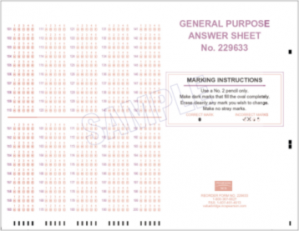
Scantron/NCS Form 229633: Available through Workday and Back Side of 229633

Screenshot of Workday Search Result for 229633
-------
Purchase Supplies for Transport and Processing: You will need to use campus mail envelopes for each version, as well as a large plastic bag for each bundle of exams. The campus mail envelopes protect exam privacy and separate into version groups. The zip-style plastic bag keeps versions together and protects against wetness or accidents. Below are some recommendations to consider.

| 
|
Item descriptions:
Quality String-Tie Jumbo Size Inter-Department Envelopes, 12 x 16 inches, 25 per pack.
13”x18” 8 mil, extra heavy-duty puncture-resistant, clear, resealable zip style plastic bags.
Guidelines for Students: (You may want to read the following instructions to your students) Correctly filling in bubbles on the answer sheet is important for accurate scores.
 Use only a No. #2 pencil. Do not use pen.
- Make the bubbles dark and completely fill in the proper answer. Do not leave the center of the bubble empty.
- Completely erase all mistakes. A poorly erased mistake may be interpreted as a response.
- Do not fold or tear the Student Answer Sheets. Sheets must be flat. Sheets that may have been spilled on and dried (coffee, water, etc.) will probably not pass through for scoring. Forms that are too wrinkled to run will need to be recopied onto a fresh answer sheet. Photocopies of forms cannot be processed.
- Do not make marks along the left or bottom of the front side (right or bottom of the back) of the form. Writing should not be made near the black horizontal scanning bars or the black squares.
Step 2: Prepare for Scanning Services [FAQ]
- Create an Answer Key.
- Complete an answer key for each version. Please use Scantron/NCS Form 229633 with a #2 pencil. Label this sheet, "AAA" in the Last Name grid. Leave all other information grids BLANK on the key sheet.

- Place answer key on top of bubble sheets.
Note: If the key is missing, written on the wrong form or completed in pen, you will need to provide a new key.
Options for Advanced Scoring: [FAQ]
Scoring assumes one correct answer per question, with each question worth one point by default. See below for other options.
Faculty and TA's: Please check the accuracy on grading reports issued by UTSS before submitting student grades.
- Omit Use to "drop a question" or treat it as blank/unscored. [KEY]: Do not bubble in any answer for this question (you can also use dry correction tape to white it out). If the students have answered a question that is being omitted, we may question whether it is intentional or an oversight on the key, so we ask that you also note this on the Exam Scanning Request form under Advanced Scoring Options.
- Multiple Answers A question with multiple answers will be graded by default as an "OR" question. [KEY]: Bubble all possible answers on the key.
- OR situation (default): student must select only one of the possible answers in order to be correct.
- AND situation: student must select ALL of the possible answers in order to be correct.
- Credit All ALL responses for a question to be correct. This includes no answer and multiple answers filled in for a question. [KEY]: Bubble in a/b/c/d/e. If it is a T/F question, still bubble a/b/c/d/e.
- Multiple Point Values / Weighted Scoring An exam with questions that are worth more than one point each and you would like us to calculate that for you. [REQUEST FORM]: You MUST use the table on the Exam Scoring Request Form to indicate which question or block of questions should be weighted. Please use only integer values. Nothing needs to be indicated on the key.
- Subtests / Objectives Allows faculty to specify groups of questions which pertain to specific course objectives. The bundled statistical reports will include objective-specific analysis. [KEY]: All subtests should be on the same key. [REQUEST FORM]: You MUST note the blocks of questions in the table on the Exam Scoring Request Form. You do not have to apply different weighting. If you would like to use the default 1 point for each question, simply note "1" in the point field.
- Extra Credit Any question on an answer key may be designated as an extra credit question. Students answering an extra credit question correctly will receive the point value for that question as part of their total score. However, the point value for an extra credit question is not included when the Total Possible Points is computed. [KEY]: All subtests can be on the same key. [REQUEST FORM]: You MUST note which questions are "extra" in the table under Advanced Scoring Options, by writing Yes in the box.
Tip: If you have Weighted Scoring, Subtests or Extra Credit, we strongly suggest you group the same purpose questions together. This ensures that there are no mix ups or confusions during scoring and helps speed processing.
---------
Rescore
- Additional sheets included: If there are no changes to your key and you just need to add some late sheets to a previous submission, bring in only the new answer sheets.
- A wrong key was placed with a version of the exam or answer sheets mixed in wrong version: Please resubmit all answer sheets with the new key on the top. We will need to rescan the key(s) and the student answer sheets.
- Modify answers on the key:
- 3 changes or less: It is now possible for tests to be rescored digitally without rescanning the student answer sheets. To request rescoring or if you have questions or concerns, email: [email protected] with "Rescore" in the subject line of the message. Fill out the Rescore section on the request form and attach it with your email. You may still submit the answer sheets for re-scanning in the traditional manner if you prefer.
- 4 or more changes: If there are more than three changes that need to be made on the key, it usually indicates that there was an error that requires more attention and detail. To avoid unneeded rescores, we request the professor/TA resubmit the student answer sheets and include a new key that has been checked closely for accuracy.
2. Complete a Scanning Request Form. Complete one purple Exam Scanning Request Form per envelope (one envelope per version of exam). You may download a fillable form via the right column of links or by clicking on the Request Form button: Scanning Request Form (fillable form)
- Pre-printed forms can be filled out by hand in our office, or you may fill in the form digitally (Acrobat Reader required). We suggest downloading the digital form and opening it in Adobe Reader, rather than opening it in a tab of your browser window. (Don't forget to save your answers before attaching the request form to your rescore email request).
- Please print the request forms on purple paper. If you are not able to obtain purple paper to print request forms from our website, please add a note with your exams requesting some pre-printed forms for future use.
Exam Scanning Request Form
(Purple, Portrait Half Sheet)


Step 3: Deliver answer sheets to Scanning Services [FAQ]
Submit in person
Directly hand-deliver exams for scoring to Scanning Services during business hours.
- Location: 1130 E. University Drive, Suite 204, Tempe AZ 85288. [UCNTRB].
- Several 20-minute loading zone parking spots are available.
Pre-printed request forms, tape, pens, rubber bands, and a time stamp are available in the office.
Experienced staff are available to show you how to fill out the purple request form and properly prepare your submission.
Remember to bring the answer key Scantron with you and please allow a few moments for staff to check your submission if you have prepared it before arrival.
Place Scantron answer sheets and one completed purple Exam Scanning Request Form inside the appropriate envelope and fasten envelope strings to secure sheets.
Place envelope(s) in a large resealed zip plastic bag. These are highly recommended. They help to group all your envelopes together, preventing loss or damage.

How to bundle exams for hand delivery.
Step 4: Access Exam Results [FAQ]
Exams are processed on a first-come, first-serve basis (FCFS). The turnaround time will be two business days (excluding weekends and holidays). We will notify you when your exam is ready, as a courtesy, in case you don't see the notification that your files are ready for download.
Rescore needed? See Step 5 below for more details.
Scoring results will be stored electronically on the University Technology Office's servers. A friendly reminder, when downloading files to your computer or portable device, please remember that the information contained within is FERPA protected. Please contact UTO for any questions about how long the data is made available.
- Convenient Online Access to Exam Results
Results will be uploaded to your MyClasses portion of MyASU.
You will have access to a PDF file for each version you submit to be graded.
An Excel workbook and Canvas file will be provided for each exam bundle.
You can find detailed information on this feature and how to download your files at: https://acrobat.adobe.com/id/urn:aaid:sc:US:2ce80d15-59dc-4b7f-944c-48f2080aeabf


Instructors or TA's: Use MyASU to Retrieve Scanned Test Reports
Note: If, after viewing your exam results, you have questions concerning student scores or missing names on reports, we suggest you wait until you've received the student answer sheets to investigate the issue before contacting our office.
- Statistical Data Reports
Each version of the exam submitted will result in a bundle of 7 reports combined into a single PDF file. Below you can view samples of each report along with explanations of the statistical information provided within them. - Excel Workbook: An Excel workbook that can be opened in Excel versions 2007 and newer will be automatically provided. The file contains a "Simple" worksheet containing Student Name, ID, and Overall Total Score, as well as a worksheet with the "Raw" scanner output of all fields. If you submit more than one version of an exam, you will get both the separate results and a worksheet with merged results.
- Canvas Import File: A Canvas file will be provided for each bundle of exams submitted for a course. Some manipulation in the Canvas system may still be required by faculty. Please contact the LMS group for questions related to Canvas.
- PDF Report Bundle: Click the images below to download sample reports with statistical definitions.
Alphabetical Listing Report #101
Provides the scores for all students in the class
Combined Student Feedback Report #105
Provides a detailed grade report, with a table of all answers chosen by students.
Class Frequency Distribution Report #103
Displays the frequency of various ranges of raw scores for an entire class, as well as the mean score.

Condensed Item Analysis Report #106
Summary of basic exam statistics: exam results as a whole, analysis of each question, group responses and point biserial calculation.
Item Analysis Report #204
Graphical representation of each question on the exam, including the frequency of responses provided by students for each question.
Special Item Analysis Report #207
Provides an overall look at point values assigned to each question and the number of students total who answered correctly or incorrectly. This report shows "no responses" as well, which can be useful for exams that ask students to only answer certain questions based on other pre-defined criteria. This report is most useful for instructors who utilize Advanced Scoring Options.
Individual Student Feedback Report #301 Provides a detailed grade report for each student who took the exam. Each student report appears on its own page, making it useful if you choose to distribute them to students.

Step 5: Pick Up Student Answer Sheets [FAQ]
- Pick Up in Person
- You must show ID when picking up your scanned answer sheets. Please allow 2 business days to process before picking up (or if you see results uploaded sooner).
- Exams must be picked up within 1 week. We cannot store or destroy these documents.
Rescore
If modifications are needed, the easiest way for us to understand your rescore needs is to complete another purple request form for each version that requires a rescore.
- Download (or locate on your computer from a previous save) Scanning Request Form.
- Open it using Adobe (your changes may not save if you open in a browser window).
- Fill out the top required section the same as the first submission.
- Fill out the middle section to indicate a rescore about what has changed.
- If you have changes to make to Advanced Scoring requests, fill out the bottom section or leave blank.
- Save and attach to the reply of this email. CC: [email protected]
** If you are only rescoring one version, but want the results merged again, please write “merge” in notes section.
- In most cases, you will not need to provide the student answer sheets.

Two business-day turnaround is based on the time the rescore request is delivered to the UOEEE Testing and Scanning Office. We will upload the new results to MyASU.
Finals
We ask that you please do not hold homework, quizzes and other scantrons that need processing until finals week when you submit your finals. We experience an overwhelming load the week before finals and the week of finals. If you have scantrons that need processing for your end of semester grades, please bring them to the office as soon as they are completed by students rather than holding them until you drop off your finals.
Click Here for an Exam Scanning Request Fillable Form